Mirage Setup and Usage
Mirage is a simulation environment which can host multiple agents in a virtual world.
Features
- Simulated cameras render image stream for client computer vision. Video: MP4 (High-Res), YouTube
- Collision detection and dynamics from the Bullet physics engine. Video: MP4 (High-Res), YouTube
- Automatic camera tracking for mobile robots. Video: MP4 (High-Res), YouTube
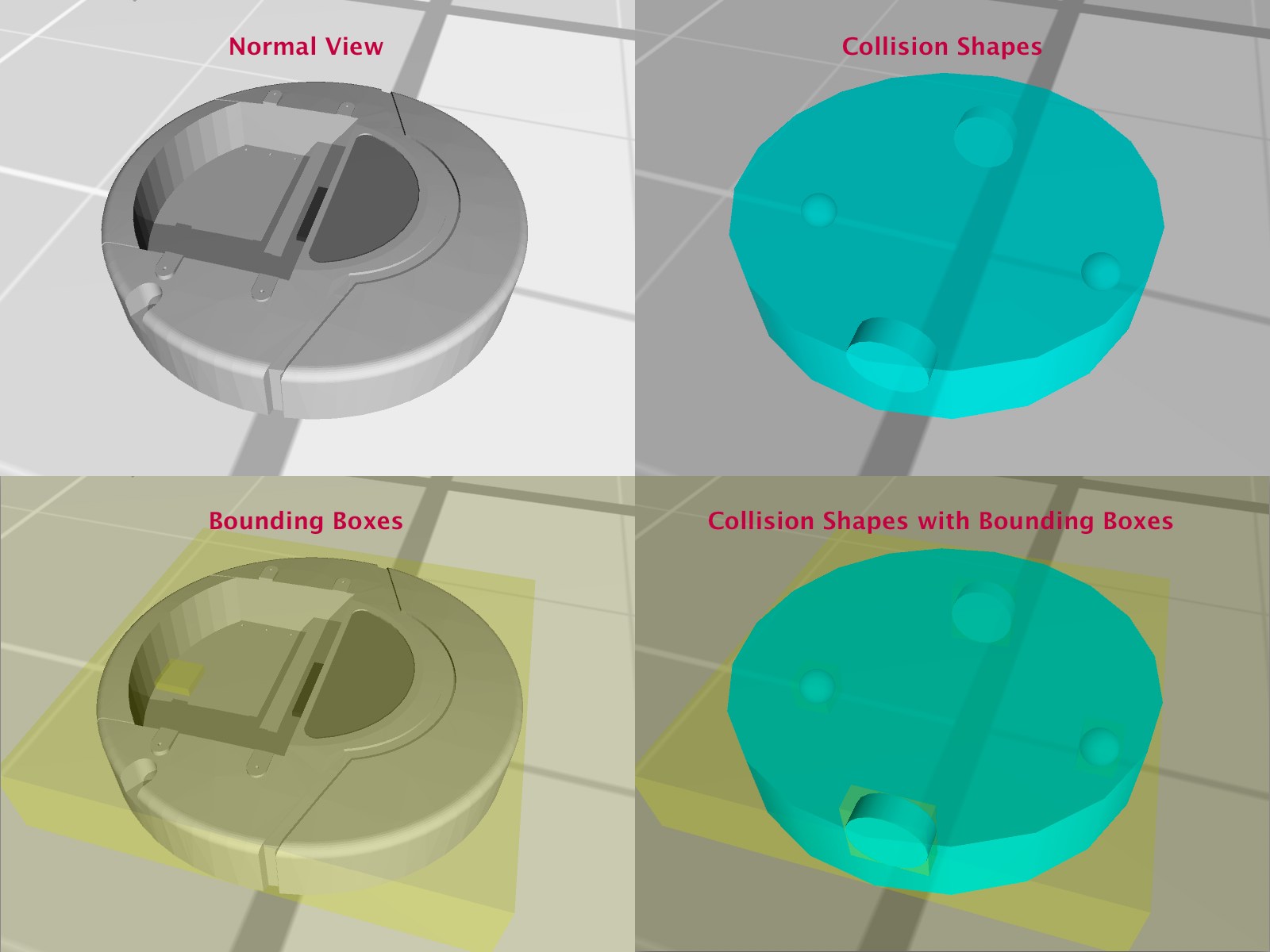
- Preview collision shapes and verify kinematic configuration. Screenshots
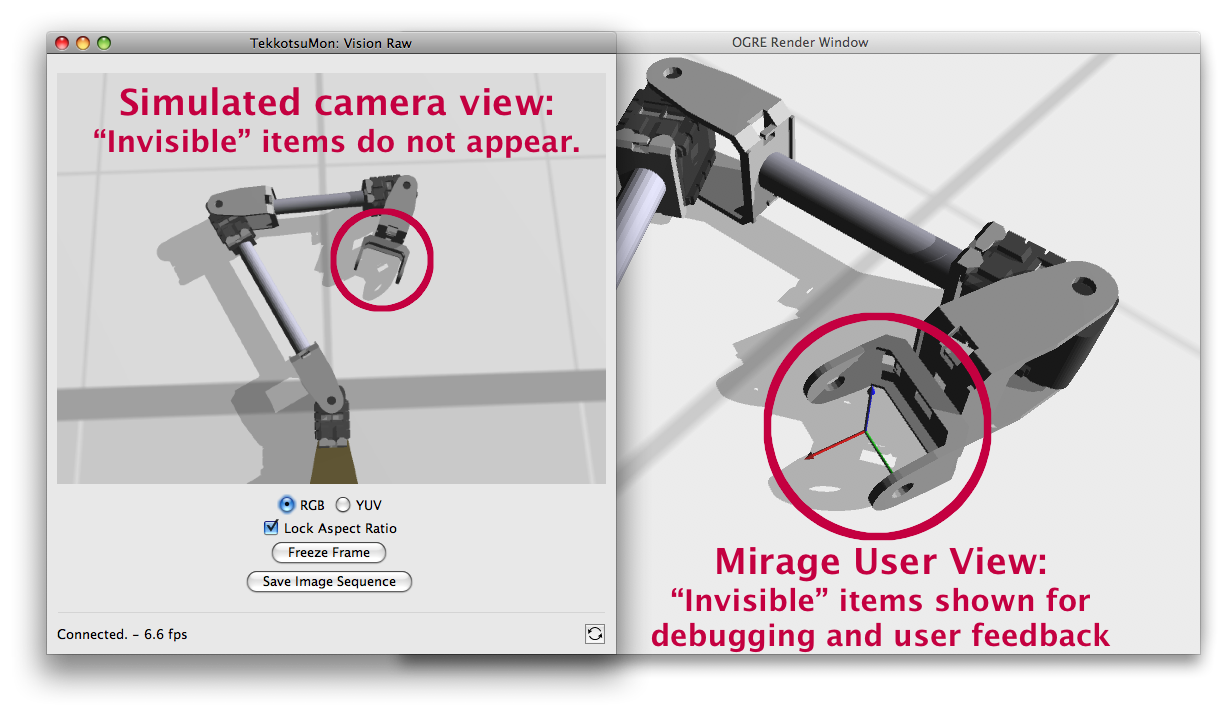
- "Invisible" objects shown in Mirage window but not rendered by simulated cameras — provides environment markup for user feedback and debugging without interfering with client execution. Screenshots

Building Mirage From Source
- You will need to install the following packages on your machine.
Please consult with the corresponding projects if you have trouble with their installation.- Ogre3d
- Linux Instructions - note you will need to install from source to get the latest version; at last check none of the major distributions carry a reasonably recent build in their package managers, but feel free to double check this first. (you would want 1.7.x or newer) This also implies installation of Ogre's prerequisistes, such as OIS.
- Mac OS X Instructions - note the copy of OIS distributed with the pre-compiled Ogre SDK (as of 1.7.3) is outdated, and awkward to use as a “naked” static library and header files. Instead, our Xcode project is configured to use a framework:
- Bullet Physics Library
- Mirage has been developed with Bullet 2.78. Newer versions may or may not work, but should be fine.
- It is recommended to install as shared libraries (pass -DBUILD_SHARED_LIBS=ON -DINSTALL_LIBS=ON to cmake)
- Mac OS X users should build as frameworks (namely, add -DFRAMEWORK=ON as well as above; see Framework Build Recipe in Bullet's installation instructions for full command)
- Ogre3d
The Mirage source is distributed as part of Tekkotsu, in the tools/mirage directory. If you haven't already, you can find instructions for downloading Tekkotsu.
Linux Instructions (using make):
If you have not already built any Tekkotsu projects, you will need to build some helper tools first:
cd TEKKOTSU_ROOT/tools
makeIf you installed Ogre or Bullet to non-standard locations, you will need to set the OGRE_ROOT and/or BULLET_ROOT environment variables, or edit the default values (/usr/local) in TEKKOTSU_ROOT/tools/mirage/Makefile.
Now we can build Mirage itself:
cd TEKKOTSU_ROOT/tools/mirage
makeUncomment the PluginFolder setting in plugins.cfg by removing the # character, and change the value to OGRE_ROOT/lib/OGRE. (where OGRE_ROOT is the location of your installation, e.g. if your OGRE_ROOT is /usr/local, then the plugin directory would be /usr/local/lib/OGRE).
Mac OS X Instructions (using Xcode)
- Open TEKKOTSU_ROOT/tools/mirage/Make.xcodeproj
- You should have installed Ogre, Bullet, and OIS as framework bundles in /Library/Frameworks. If you didn't, you can change the library locations in the ▸Frameworks▸Linked Frameworks file group in the navigation panel on the left. (delete old references and drag-and-drop from current locations, or right click, "Get Info", "Choose")
- Choose "Build" from the "Build" menu to compile.
- As a command line alternative, try running xcodebuild from within the mirage directory. (You don't need to be running Xcode)
- The application will be placed at TEKKOTSU_ROOT/tools/mirage/build/Debug/Mirage.app. You can run it from the Finder, or choose "Run" from within Xcode. (or the open command from the command line…)
The Mirage WorldBuilder tool is included in the Tekkotsu/rools/mirage directory, but it depends on some Ruby packages that are not installed by default. To install these packages, do:
sudo apt-get install ruby rubygems
sudo gem install plist treetop
Running Mirage
Mac OS X Users: Run Mirage from within Xcode, or double click the application from the Finder.
Linux Users: Launch mirage from within the TEKKOTSU_ROOT/tools/mirage directory:
cd TEKKOTSU_ROOT/tools/mirage
./mirage
You will first see an Ogre configuration window—you will probably want to disable fullscreen mode and reduce the window resolution.
Afterward, a window should appear, displaying the Mirage 3D environment.
Camera Controls:
- W
- move forward
- S
- move backward
- A
- move left
- D
- move right
- PgUp
- move up
- PgDn
- move down
- ↑
- pitch up
- ↓
- pitch down
- ←
- yaw left
- →
- yaw right
- U
- unfollow the robot (if a tekkotsu robot has connected)
- See Advanced Usage below for more controls
Loading custom environments
You can load environment files either by passing file names as arguments on the command line:
./mirage worlds/tictactoe.mirageMac OS X users can also double-click or drag-and-drop a file on the application to launch with that environment. Mirage can load .kin kinematic files, or its own .mirage environment files. You can load multiple files to combine their effects.
See the Configuration section below for more information on customizing Mirage's environment, as well as the World Builder tool.
Connecting Tekkotsu
We will now launch Tekkotsu and tell it to connect to Mirage. If you have not yet built and run a Tekkotsu project, see these instructions for help. Alternatively, see Advanced Usage below for other examples of clients which can connect to Mirage (e.g. mazegen).
In a new terminal, change to your project directory and run Tekkotsu with the -c mirage.plist arguments.
cd PROJECT
./tekkotsu-TARGET -c mirage.plistThis will load the hardware abstraction layer settings from the mirage.plist file, so Tekkotsu will talk to Mirage instead of looking for "real" hardware. It is possible to run Mirage in parallel with physical hardware, or on a remote machine, by customizing the HAL settings at the Tekkotsu command prompt.
- The robot should have appeared in the Mirage window. If you can't find it, try relaunching Mirage to reset the camera to look at the origin, where the robot should appear.
- You can use the ControllerGUI to control the simulated robot, simply pass localhost for the robot address when launching ControllerGUI (more instructions on using ControllerGUI). Try clicking the "Raw Cam" button to bring up the rendered camera image.
Advanced Mirage Usage
- By default, Mirage opens with two objects in the world: a single light (light1), and a ground plane with a reference frame at its origin (ground). You can create property list XML files which modify a number of parameters, documented below in “Environmental Configuration”.
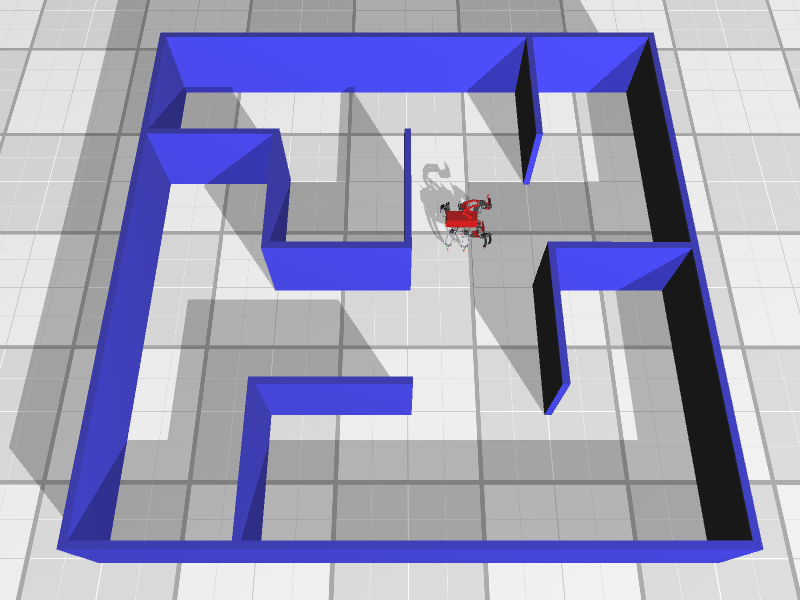
- The default Mirage server port is 19785. You can connect additional "agents" to the world to serve as dynamic targets, construct procedural objects (such as the maze to the right), or have multiple full-fledged robots. These agents can be written as Tekkotsu behaviors using Mirage for user feedback, or as separate programs which serve a specific function.
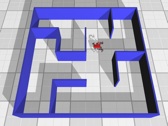 Generated by the mazegen tool
- MirageComm is the official ‘high-level’ API:
#include "local/DeviceDrivers/MirageComm.h"
A usage example is the chess tool, which constructs and manages a chess board in Mirage. - For lower-level examples which talk directly to mirage, see MirageMirrorBehavior, MirageTargetBehavior (header, implementation), the mazegen tool, and the stackgen tool. (Each of these may eventually be updated to use MirageComm.)
- MirageComm is the official ‘high-level’ API:
- Press the 'H' key to toggle view of the simplified collision shapes instead of graphical models.
- Press the 'B' key to toggle view of the link bounding boxes.
- '1' (the number one) will set the camera to rotate-follow RobotID-1 (e.g. handy if you've lost the robot or want to automatically track a mobile robot.) Eventually, this will be extended for multiple robots, so pressing a number key will rotate the camera to track the corresponding robot.
- The 'F' key will follow any object at center of the window.
- Pressing 'F' by itself will simply select the object, displaying its bounding box.
- Ctrl-F will track the object by moving the camera (but not changing its orientation).
- Alt-F (aka Option-F) will track the object by rotating the camera (but not changing its position).
- Ctrl-Alt-F will lock the camera to the object, so that it moves the same as the object.
- 'U' will “unfollow” the object, so the camera will only move under user control. Following will not be resumed on client reconnect.
- 'R' will reload the initial launch environment: all current clients will be disconnected, and if you double-clicked an environment file or passed a filename as a command line argument, those file(s) will be reloaded. Clients such as the Tekkotsu driver will automatically reconnect. This should be handy for both editing environment files as well as resetting trials when developing algorithms.

Robot Locomotion
Mirage supports two forms of robot locomotion: pure physics-based simulation, and “assisted” locomotion. The former is useful if you have an accurate model of your robot's mass distribution and you want to test the stability of different gaits. The latter “assisted” method uses hints from the walk engine to hold support feet immobile so that the resulting locomotion is nearly perfect, without slippage or falling over. The assisted method is also the only way to move a robot when it has incomplete physics information, such as unspecified mass or collision shapes.
Further, robots can be wheeled or legged. The effects of various combinations of wheeled, legged, with or without physics configuration, and with or without locomotion assistance is listed in the following table:
The “Mass” column refers to LinkComponents (and thus derived KinematicJoints) which have non-zero Mass specified. In this column, the value “Partial” means the root KinematicJoint (BaseFrame) of the robot DOES NOT have mass, but all of its sub-links (i.e. moving parts) DO have mass.
The “Shape” column refers to LinkComponents (and thus derived KinematicJoints) which have a CollisionModel specification. The regular Model is used for display only, and is typically too high-resolution to use for physics simulation. You must specify one or more primitive collision shapes which approximate the display model in order to allow physical simulation of object interaction. (hint: the ‘H’ key will switch to displaying collision shapes instead of the usual display models.)
The “Assisted” column refers to whether the MirageDriver's PhysicsWalk or PhysicsWheels is DISABLED. (e.g. Drivers.Mirage.PhysicsWalk=false) If appropriate physics setting is enabled, then only normal physical simulation is applied, allowing ground contacts to slip. If physics interaction is disabled in the driver, then the walk engine's intended foot contacts are sent to Mirage, allowing it to 'assist' the locomotion. As summarized in the table, robots lacking complete physics specification require this assistance in order to move.
| Mass | Shape | Assisted | Result | Usage | CPU |
|---|---|---|---|---|---|
| No | No | No | Immobile, no environmental interaction | Graphics visualization, vision tests (it’s a “ghost”) | Low |
| No | No | Yes | Ground plane mobility, no environmental interaction | Low | |
| No | Yes | No | Immobile, one-way interaction | Simple manipulation tests: poor simulation accuracy (effector has no true momentum, collision contacts are a heuristic) “One-way interactions” because objects cannot push back, or in other words the robot is infinitely strong. |
Low |
| No | Yes | Yes | Ground plane mobility, one-way interaction | Low | |
| Partial* | Yes | No | Immobile, but can physically interact | Fixed robots like HandEye: body is bolted down, but limbs can interact with environment | Med |
| Partial* | Yes | Yes | Obstacle-sensitive mobility, allows environmental interaction except with the body itself | Almost-perfect locomotion for wheeled and legged robots: will respect obstacles and ground for joint motion, but body will move without physics; wheeled robots can ride over obstacles without risk of high-centering | Med |
| Yes | No | Cannot use mass without shape (falls through ground, nothing to hold it up) | |||
| Yes | Yes | No | Purely physical locomotion: simulates friction, momentum, support | Realistic wheeled robot motion, or when developing new legged locomotion gaits (assuming an accurate mass model of the robot!) | Med |
| Yes | Yes | Yes | Semi-physics based locomotion: feet/wheels will not slip but otherwise move under physics control. | Navigation tests for robots when you wish to minimize locomotion error. This is very similar to the “partial mass” configuration, but allows more realistic interaction between feet, body, and environment (i.e. slightly less ‘perfect’) |
High |
* Partial indicates that the robot has a zero mass body (base frame) but has positive mass listed for its other links.
The assisted locomotion for legged robots can be controlled via the Mirage driver's PhysicsWalk and PhysicsWheels setting (see 'help set Drivers.Mirage.PhysicsWalk' from the Tekkotsu HAL command line). Enabling PhysicsWalk/Wheels will prevent the Tekkotsu executable from sending foot location or wheel speed hints to Mirage.
Environment Configuration
The Mirage environment begins with a cloudy blue sky, a single light, and a ground plane with a reference frame at the origin. You can change many aspects of the configuration listed below, including adding objects, simulation speed, and graphics options.
A Mirage environment file is an XML format based on the Property List used by Apple for its configuration files. For example, to configure the user's camera starting position and orientation:
<!DOCTYPE plist PUBLIC "-//Apple//DTD PLIST 1.0//EN"
"http://www.apple.com/DTDs/PropertyList-1.0.dtd">
<plist version="1.0">
<dict>
</plist>
Other supported value types include string, integer, true, and false.
The Environment dictionary is the root element of the property list. You should name your property list with the .mirage extension so that the application can be associated with the file. This should allow you to double-click environment files to launch Mirage with that environment.
You do not have to specify all values in a dictionary, unspecified values simply retain their current value. This also allows you to launch with multiple environment files to combine their settings.
Note specialized types:
- Types labeled “color” below can accept either a string with an HTML style color specification (e.g. #001122) or an array of real values, 0-1 for each color channel.
- The “…Scale” parameters which are listed as type float[3] can also accept a single real value which will be applied to all three components for uniform scaling.
- Rotation values are based on the (x,y,z) components of a quaternion. To convert from axis/angle convention with a normalized axis of rotation:
if |angle| ≤ 180° then q = axis · sin(angle / 2)
if |angle| > 180°, then flip signs: q = axis · -sin(angle / 2)